
Answer Summary
As of June 2026, the Connexion portal—the unified digital ecosystem for the DMEPOS Competitive Bidding Program (CBP)—is officially open for bidder registration. Before you can submit a price later this summer, you must successfully register your Authorized Officials (AOs) and Backup Authorized Officials (BAOs) by the end of this month.
While the process sounds administrative, historical data suggests that nearly 20% of providers encounter critical “identity verification” errors that prevent them from accessing the bidding screens. Common failure points include mismatched email addresses between the Identity & Access Management System (I&A) and PECOS, expired User IDs, and “Role Rejection” errors. This guide provides a comprehensive, step-by-step walkthrough to securing your User ID, linking it to your bidding organization, and verifying your network status before the deadline.
Introduction: The Door is Open
The “Pre-Bid” planning season is officially over. The Registration Window is now open.
For the 2026 Round, CMS has modernized the bidding infrastructure. Gone are the days of the disjointed “DBidS” system. In its place is Connexion, a streamlined (but rigorous) portal that handles everything from registration to financial document uploads to final bid submission.
This modernization brings efficiency, but it also brings a zero-tolerance policy for data mismatches. In previous rounds, you might have had a “grace period” to fix a login issue. In 2026, the digital gate is absolute. If you cannot log into Connexion by the registration deadline (typically 60 days before the bid window closes), you cannot bid. Period.
It does not matter if your pricing strategy is perfect. It does not matter if you have a 50-state license footprint. It does not matter if you have served Medicare beneficiaries for 30 years. If you do not have an active, verified User ID in Connexion, you do not exist.
At Wonder Worth Solutions, our Registration Support Team is already seeing the first wave of “Access Denied” tickets from providers who waited until the last minute. The root cause is almost always a discrepancy between the provider’s actualidentity and their digitalidentity in the CMS database.
This guide is your survival manual. We will walk you through the four critical phases of registration, identifying the hidden traps that catch most DME providers off guard.
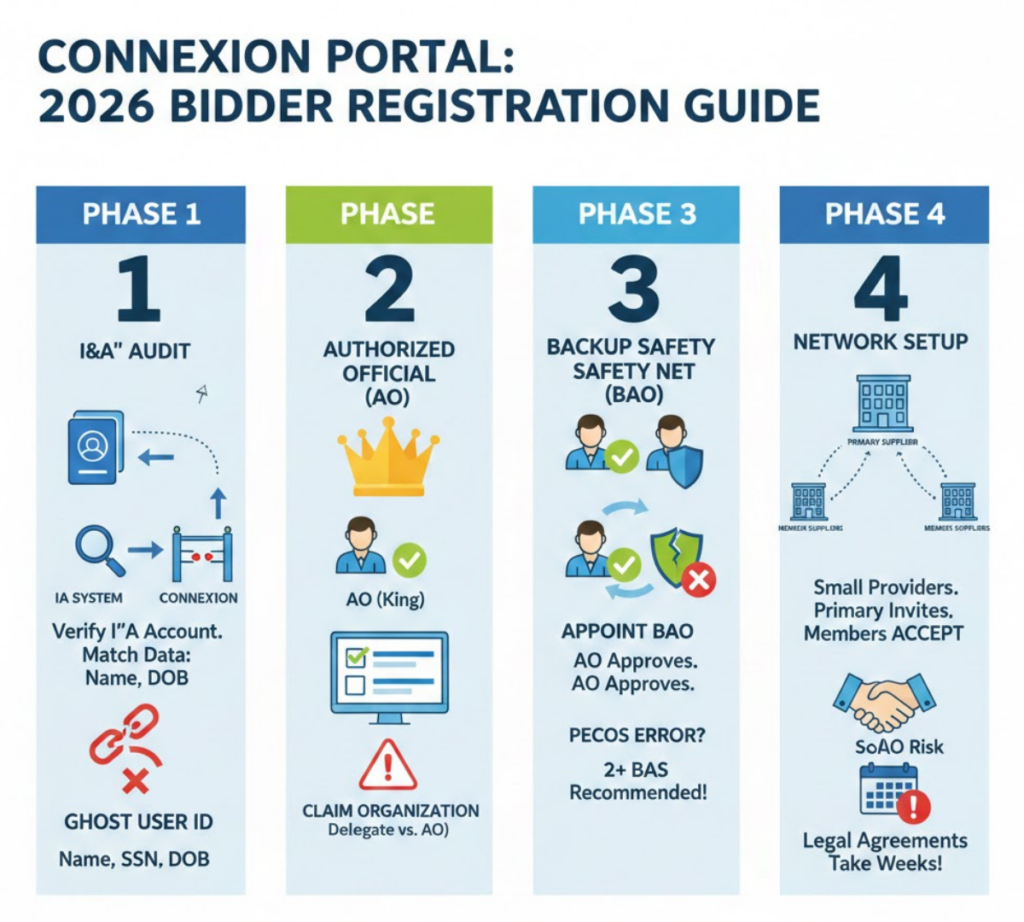
Phase 1: The “I&A” Audit (The Root Cause of Failure)
Most providers try to log directly into Connexion on Day 1. This is a mistake.
Connexion does not hold your identity. It pulls your identity from a separate, older system called the Identity & Access Management System (I&A).
Think of I&A as your “Digital Passport” and Connexion as the “Border Crossing.” If your passport is expired or has a typo, the border guard (Connexion) will not let you in.
The “Ghost” User ID Problem
Many DME owners created an I&A account five years ago to access NPPES or PECOS. They assume that account is still valid.
- The Reality: CMS deactivates User IDs after periods of inactivity. If you haven’t logged into a CMS portal in 180 days, your ID might be dormant.
- The Fix: Go to the I&A System immediately https://nppes.cms.hhs.gov/IA and attempt to log in. If you are locked out, start the password reset process now. This can take 24 hours to sync.
The “Data Mismatch” Trap
This is the #1 cause of registration failure.
- Scenario: In PECOS, your Authorized Official is listed as “Robert J. Smith.” In I&A, he is registered as “Bob Smith.”
- The Result: Connexion will not recognize “Bob” as the Authorized Official for your DME company. You will see a “Role Mismatch” or “User Not Associate with NPI” error.
- The Solution: The data must match character for character. Open PECOS in one tab and I&A in another. Verify the First Name, Last Name, SSN, and Date of Birth. If there is a discrepancy, edit the I&A profile (it is faster to update than PECOS).
Phase 2: Registering the “Authorized Official” (AO)
In the Connexion hierarchy, there is only one King: The Authorized Official (AO).
No one else—not your billing manager, not your consultant, not your Backup Official—can take a single step until the AO has successfully registered and “claimed” the organization.
Step-by-Step Registration for AOs
- Login: Navigate to the Connexion portal and log in with your verified I&A credentials.
- The “Claim” Screen: Upon first login, you should see a list of PTANs (Provider Transaction Access Numbers) associated with your SSN.
- Selection: Select the specific PTANs you intend to include in this bid.
- Warning: If you have 5 locations but only see 3 PTANs listed, STOP. This indicates that your PECOS enrollment for the missing 2 locations is either inactive or does not list you as the AO. You must file a PECOS update immediately to fix this.
- Verification: Connexion will ask you to verify the “Legal Business Name” and “Tax ID” (EIN) for the selected PTANs.
- Confirmation: Once confirmed, you will receive a “Registration Successful” ID number. Print this screen. You will need this ID for technical support tickets.
Common Error: “Organization Not Found”
If you log in and see a blank screen where your PTANs should be, do not assume it is a “glitch.” It is almost always a PECOS Association Error.
- Cause: You are listed as a “Delegated Official” (DO) in PECOS, not an “Authorized Official” (AO).
- Rule: Only the AO can initiate registration. A DO cannot register the company.
- Fix: You must submit a Form 855S Change of Information to upgrade your status to AO. Note: This takes 45–60 days, so urgency is paramount.
Phase 3: The “Backup” Safety Net (BAO)
Critical Rule: Never, under any circumstances, have only one Authorized Official.
We have seen nightmare scenarios where the sole AO suffers a medical emergency, quits the company, or gets locked out of their account on the final day of bidding.
If you have no Backup AO, your bid is dead. You cannot simply “login as them” (that is a federal crime).
How to Appoint a Backup Authorized Official (BAO)
- Identify the BAO: Choose a trusted partner, CFO, or Compliance Officer.
- I&A Registration: The BAO must create their own I&A account (if they don’t have one).
- The Request: The BAO logs into Connexion and clicks “Request Role: Backup Authorized Official.” They will search for your NPI/Tax ID.
- The Handshake: This is the part everyone forgets. The request is not automatic. The AO must log back in to Connexion, navigate to “Pending Requests,” and manually APPROVE the BAO.
- Status Check: Ensure the BAO’s status changes from “Pending” to “Active.”
Tip: We recommend appointing at least two BAOs for redundancy.
Phase 4: The Network (Consortium) Setup
If you are a small provider (revenue under $2M) planning to bid as part of a Network, the registration process is different. You cannot simply register as an individual and then “join” a network later.
The “Primary Supplier” Responsibility
One company must step up as the Primary Supplier. This entity is the “Head of the Snake.”
- Registration: The Primary Supplier selects “Register as Primary Network Supplier” during the initial setup.
- Member Addition: The Primary Supplier must manually enter the Legal Business Name, Tax ID, and PTAN of every “Member Supplier” they wish to invite.
The “Member Supplier” Acceptance
Once the Primary adds a member:
- The Member AO receives an email notification.
- The Member AO must log into Connexion.
- They will see a “Network Invitation.”
- They must click “Accept” and electronically sign the certification statement acknowledging joint liability.
Warning: Do not wait until the last week to form a network. The legal agreements required to back up this registration take weeks to draft and sign. Connexion registration is the final step of network formation, not the first.
Troubleshooting: The “MFA” Loop of Death
Security is tight in 2026. Connexion uses Multi-Factor Authentication (MFA) for every login.
- The Problem: You hit “Send Code,” but the code goes to a cell phone number you changed two years ago.
- The Reality: You cannot update your phone number inside Connexion. Connexion is just a “window” into the I&A system.
- The Fix:
- Log out of Connexion.
- Go to the CMS Enterprise Portal (portal.cms.gov).
- Log in and go to “My Profile” -> “MFA Devices.”
- Delete the old number and add the new one.
- Wait 30 minutes for the systems to sync.
- Log back into Connexion.
WWS Value Proposition:
We Are Your “Registration Desk”
Does this sound technical and tedious? It is.
It is also high-stakes. A single misstep here prevents you from even seeing the bid price screens.
Wonder Worth Solutions offers a managed Connexion Registration Service. We act as your technical help desk during this critical month.
- I&A Audit: We review your I&A and PECOS profiles side-by-side to catch data mismatches before you try to register.
- BAO Management: We ensure your backup officials are correctly linked and approved.
- Network Coordination: If you are forming a consortium, we manage the “invitation and acceptance” workflow for all members to ensure no one is left behind.
We handle the login logistics so you can focus on the pricing strategy.
Can you log in?
Do not wait until the Bid Window opens to test your credentials
If you are locked out, the CMS Help Desk hold times will be 4+ hours. Contact today for a Connexion Readiness Check. We will verify your User IDs, check your AO/BAO status, and ensure your digital “Keys to the Castle” work before the bidding starts.